If you’re wondering why your Apple Pencil is lagging, the answer might be simpler than you think. Low battery levels or Bluetooth connectivity issues are common culprits. To resolve this, ensure your Apple Pencil is fully charged and properly paired with your device. If the problem persists, there may be software glitches causing the lag. Stay tuned as we delve into troubleshooting tips to get your Apple Pencil back to its smooth, responsive self.

Why Is My Apple Pencil Lagging: Troubleshooting and Solutions
Introduction
Hey there! If you’re experiencing lagging issues with your Apple Pencil, you’re not alone. It can be frustrating when your trusty tool for creating digital masterpieces doesn’t work as smoothly as it should. But fear not, we’re here to help you troubleshoot and find solutions to get your Apple Pencil back to its responsive self!
What Causes Apple Pencil Lagging?
So, why is your Apple Pencil lagging? There are several factors that could be causing this issue. Let’s delve into some of the common reasons behind the lag and how you can address them.
Bluetooth Connectivity
One of the primary reasons for Apple Pencil lagging is often related to Bluetooth connectivity. Your Apple Pencil communicates with your iPad or iPhone via Bluetooth, and if there are issues with this connection, it can result in lag.
To ensure a stable connection, make sure your Apple Pencil is paired correctly with your device. You can do this by going to the Bluetooth settings on your device and selecting your Apple Pencil to pair it. Additionally, try turning Bluetooth off and on again to reset the connection.
Low Battery Level
Another common culprit for Apple Pencil lagging is a low battery level. If your Apple Pencil is running low on juice, it may not be able to function properly, leading to lagging issues.
To prevent this, always make sure to charge your Apple Pencil regularly. You can check the battery level by swiping down on your iPad or iPhone screen to access the Notification Center, where you’ll see the battery percentage of your Apple Pencil.
Software Updates
Software updates can also impact the performance of your Apple Pencil. If your device’s operating system is not up to date, it could lead to compatibility issues that result in lagging.
Check for any available software updates for your device by going to the Settings app and selecting ‘General’ followed by ‘Software Update.’ If there are updates available, make sure to install them to ensure optimal performance of your Apple Pencil.
App Compatibility
Certain apps may not be optimized for use with the Apple Pencil, which can cause lagging. Make sure that the app you’re using is compatible with the Apple Pencil and that it’s updated to the latest version.
If you’re experiencing lagging issues with a specific app, try reaching out to the app developer for support or look for alternative apps that work seamlessly with the Apple Pencil.
How to Fix Apple Pencil Lagging Issues
Now that you know some of the common reasons behind Apple Pencil lagging, let’s explore how you can troubleshoot and fix these issues to get your Apple Pencil working smoothly again.
Restart Your Device
One of the simplest solutions to address lagging issues is to restart your device. This can help refresh the system and clear any temporary glitches that may be causing the problem.
To restart your iPad or iPhone, press and hold the power button until the slider appears on the screen. Slide the slider to power off your device, wait a few seconds, then press and hold the power button again to turn it back on.
Reconnect Your Apple Pencil
If you’re still experiencing lag after restarting your device, try disconnecting and reconnecting your Apple Pencil. This can sometimes re-establish a stable connection and resolve any Bluetooth issues causing the lag.
Go to the Bluetooth settings on your device, forget the Apple Pencil, and then pair it again to see if this helps improve the responsiveness of your Apple Pencil.
Update Your Device and Apps
As mentioned earlier, keeping your device and apps updated is crucial for optimal performance. Make sure to install any available software updates for your iPad or iPhone, as well as updates for the apps you use with your Apple Pencil.
Regularly checking for updates can help prevent lagging issues and ensure a smooth experience when using your Apple Pencil.
Check for Interference
External factors such as interference from other electronic devices can also affect the performance of your Apple Pencil. If you’re experiencing lag, try moving away from devices that may be causing interference, such as Wi-Fi routers or other Bluetooth devices.
By minimizing external interference, you can help improve the connectivity and responsiveness of your Apple Pencil.
There you have it! We’ve explored some of the common reasons behind Apple Pencil lagging issues and provided you with practical solutions to troubleshoot and address these problems. Remember to keep your device and apps updated, ensure a stable Bluetooth connection, and minimize interference to enjoy a lag-free experience with your Apple Pencil.
If you’ve tried the troubleshooting tips mentioned above and are still facing lagging problems, don’t hesitate to reach out to Apple Support for further assistance. With a little troubleshooting and some patience, you’ll be back to creating digital art and taking notes seamlessly with your Apple Pencil in no time. Happy creating!
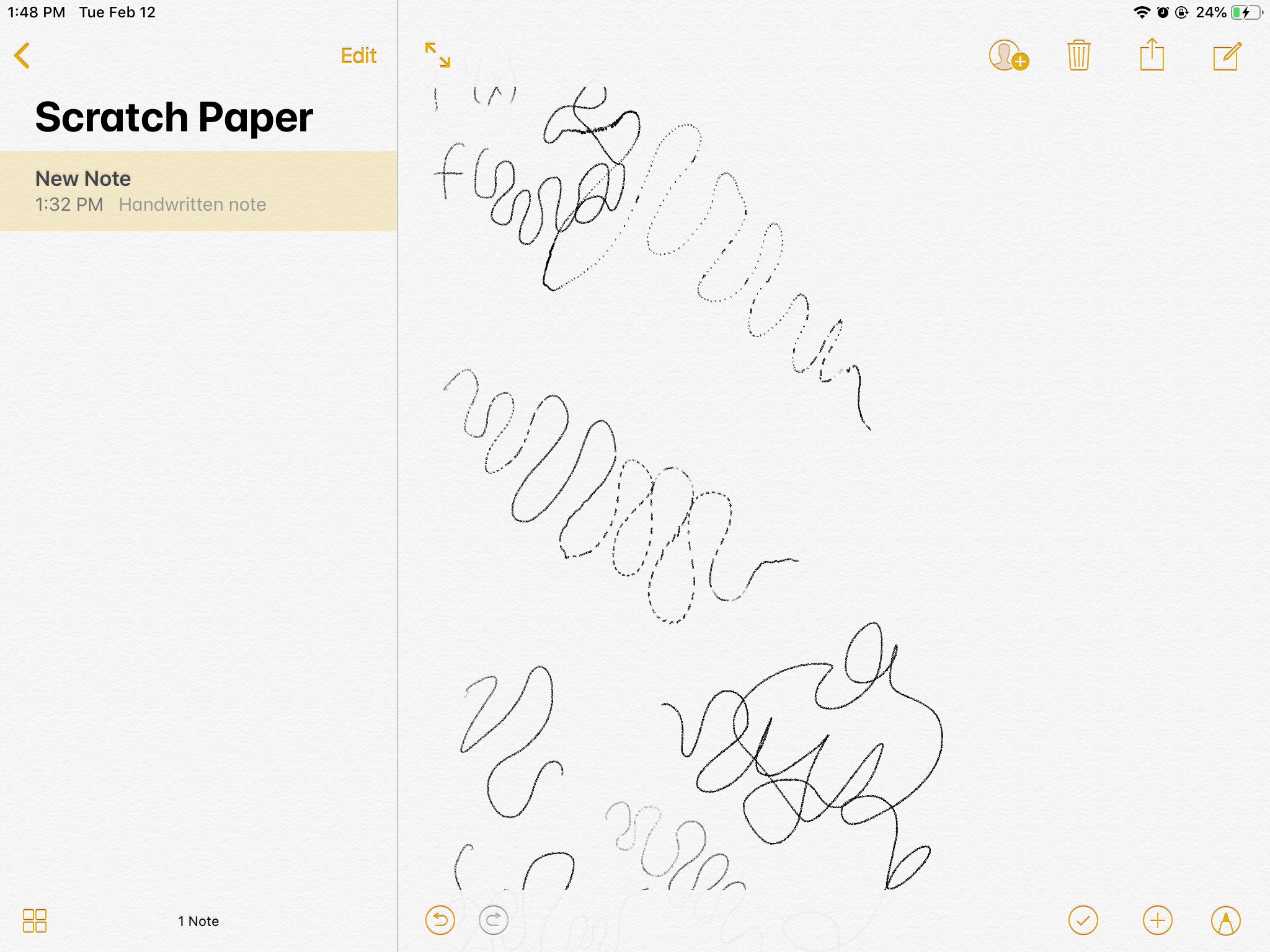
iPadOS 16.1 Apple Pencil lag in Notes
Frequently Asked Questions
Why does my Apple Pencil lag while using it with my iPad?
Apple Pencil lag can occur due to several reasons, such as a low battery level on the Apple Pencil, interference from other Bluetooth devices, or software glitches on the iPad. It is advisable to ensure that your Apple Pencil is fully charged and update both the iPad and Apple Pencil firmware to resolve any potential performance issues.
How can I fix the lagging issue with my Apple Pencil?
To address lagging issues with your Apple Pencil, you can try restarting both your iPad and Apple Pencil, unpairing and repairing the Apple Pencil, adjusting the iPad’s settings to improve Bluetooth connectivity, or checking for any debris on the pencil tip or iPad screen that may be causing interference. Performing these troubleshooting steps can help improve the responsiveness of your Apple Pencil.
Is there a way to optimize the performance of my Apple Pencil to reduce lag?
To optimize the performance of your Apple Pencil and minimize lag, consider adjusting the Apple Pencil’s settings in the iPad’s Bluetooth menu, using the Apple Pencil on a clean and smooth surface, ensuring that the iPad is not running multiple resource-heavy apps in the background, and keeping both the Apple Pencil and iPad software up to date. These steps can help enhance the overall responsiveness of your Apple Pencil.
Final Thoughts
If you are experiencing lag with your Apple Pencil, several factors could be causing the issue. Low battery levels in either the pencil or the connected device can lead to lag. Interference from other wireless devices may also affect the pencil’s performance. Additionally, outdated software on your device can contribute to lagging issues. It is crucial to address these potential causes to improve the performance and responsiveness of your Apple Pencil. Next time you wonder, “why is my Apple Pencil lagging,” remember to check these common culprits.